
Best AI Tools for Video Editing Free: Choose the Right Editor
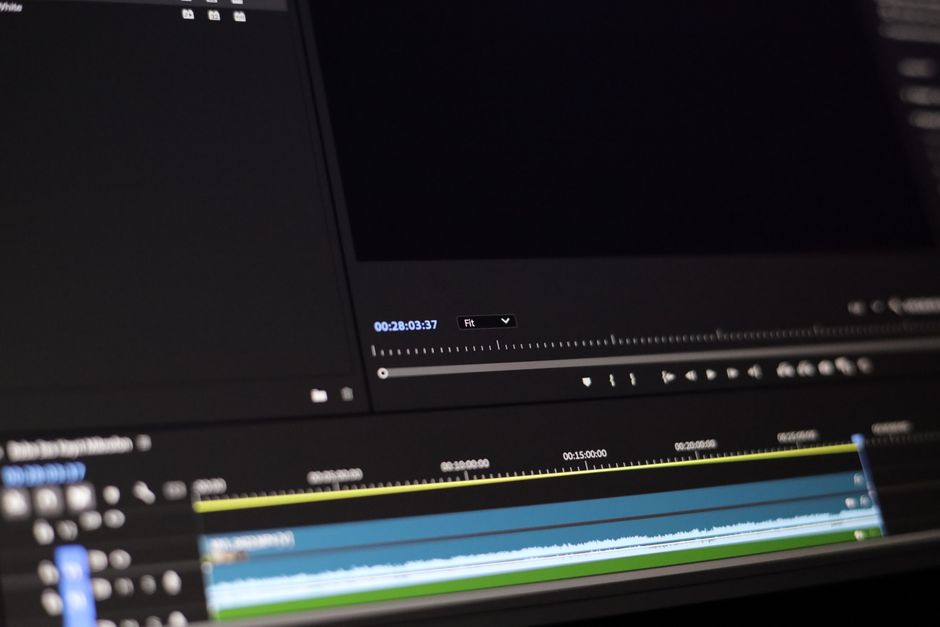
The best ai tools for video editing free depend on the job: Clipchamp offers watermark-free exports up to 1080p with AI subtitles and silence removal, DaVinci Resolve is a downloadable choice with Ultra HD export, and CapCut offers browser-based caption generation. Check each tool’s limits before editing: free export ceilings, AI usage caps, and watermark rules differ or are not fully published.
Is there any free AI that can edit videos?
Yes. Free editors can use AI for specific parts of an edit, such as generating subtitles, making voiceovers, or removing silence. Those features help shape existing footage; they do not mean every step of editing is automatic.
Clipchamp’s free plan includes AI subtitles, AI voiceovers, and silence removal alongside basic editing. Microsoft says free users can export unlimited videos up to 1080p HD without watermarks, while 4K UHD exports and premium stock assets are premium features. A personal Microsoft account is required. The editor works online, so a download is not needed.
CapCut’s online editor follows a more hands-on timeline workflow: upload footage, trim or split clips, then add text, effects, or automatically generated captions. Its page says users need to sign in or sign up and can upload media from a computer or cloud services. That makes it useful for creators who want AI help inside a conventional edit, rather than a tool that replaces editing decisions.
What's the best free AI for videos?
For existing footage, Clipchamp is the strongest fit when the priority is a straightforward browser workflow with clearly stated free export terms. CapCut suits creators focused on automatic captions and timeline edits. DaVinci Resolve fits desktop users who need broader post-production tools and higher free export resolution.
The limits matter as much as the AI features. Clipchamp is explicit about no-watermark exports up to 1080p, but its 4K export is premium. CapCut lists export controls for resolution, quality, frame rate, and format, yet its page does not publish a universal free-tier ceiling. For DaVinci Resolve, Blackmagic Design says the free version supports virtually all 8-bit video formats up to 60fps and Ultra HD 3840 × 2160. Its more advanced AI tools, including text-based editing, Magic Mask, and AI noise reduction, are listed as Studio features.
Use the tool that matches the job, not the broadest feature list. For talking-head footage, automatic captions can reduce repetitive work; for a polished edit with color, effects, and audio tools, Resolve provides a wider desktop workspace. If the goal is to generate a video from a prompt rather than edit recorded clips, see One-Minute AI Video: One Prompt or Edited Clips?
What is the best AI for video editing?
There is no single best choice for every editing task. Clipchamp has the clearest published free-plan promise for simple edits; CapCut combines caption generation with an online timeline; DaVinci Resolve offers the strongest documented free resolution and a broad desktop editing suite.
Use this comparison to narrow the choice. “Not published” means the cited product page does not state that plan detail, not that the tool has no limit.
| Option | Best suited to | Free cost | Watermark | Export resolution | AI-use limits | Signup | Key limitation |
|---|---|---|---|---|---|---|---|
| Microsoft Clipchamp | Browser edits, subtitles, voiceovers, silence removal | Free plan | No watermark on free exports | Up to 1080p free; 4K premium | Not published | Personal Microsoft account required | 4K exports and premium stock assets are premium features |
| DaVinci Resolve | Desktop editing, color, effects, motion graphics, audio post-production | Free downloadable version | Not published | Up to Ultra HD 3840 × 2160 for virtually all 8-bit formats at up to 60fps | Additional AI tools are Studio features; usage caps not published | Not published | Some AI-powered tools are reserved for Studio |
| CapCut online editor | Browser timeline editing and automatic captions | Free online editor page; plan details not fully published | Not published | Export controls are listed; free ceiling not published | Not published | Sign-in or signup required | Universal free export ceiling is not specified |
Run a short export before building the full edit. Confirm the output resolution, watermark behavior, and whether the AI feature you need is available in the free plan. This small check separates a listed feature from a usable workflow.
Privacy is another dividing line. Clipchamp and CapCut’s described online workflows involve browser use and uploading or accessing media through a computer or cloud service. DaVinci Resolve is a downloadable desktop option. The provided product information does not establish how footage is processed or stored, so creators with sensitive raw footage should review each service’s privacy terms before uploading.
Can ChatGPT edit videos for you?
ChatGPT can analyze some uploaded videos, but the cited OpenAI documentation does not describe a direct video-editing workflow or finished video export. It can help with planning an edit, such as drafting a sequence, caption text, or a shot list, while the actual cutting and exporting happens in a video editor.
OpenAI notes that video upload availability depends on platform, upload method, and account. Video attachments count toward plan file-upload limits, including on Free plans where supported. Its help page also warns that video analysis can be incomplete or inaccurate and may miss parts of the video or audio. That makes it an aid for understanding footage, not a substitute for checking the timeline and final export yourself.
Frequently Asked Questions
Which free AI video editor exports without a watermark?
Clipchamp states that free users can export unlimited videos up to 1080p without watermarks. The provided CapCut page does not specify a universal free watermark rule, so check the current export flow before editing a full project.
Which free video editor can automatically add captions?
Clipchamp includes AI subtitles in its free plan, and CapCut’s online editor lists speech-to-text subtitle generation. Both are browser-accessible options according to their product pages.
Are online AI video editors limited by credits, video length, or export resolution?
Limits vary by service. Clipchamp specifies unlimited video exports up to 1080p, while the CapCut page provides export controls but no universal free-tier ceiling; its listed page also does not state a credit or length cap.
Is there a free AI video editor I can download for PC?
DaVinci Resolve has a downloadable free version for desktop and supports Ultra HD 3840 × 2160 for virtually all 8-bit formats at up to 60fps. Its product page distinguishes that free version from Studio, which includes additional AI-powered tools.
Sources
Related guides
Best AI Tools for Image Generation: Choose the Right One
The best AI image generator depends on your needs: compare ChatGPT, Gemini, Midjourney, and Firefly by task and current terms.
Best AI Tools for Resume Building: Choose the Right Fit
Compare AI resume tools by free exports, job-description tailoring, and writing support, then choose the fit for your workflow.

Best AI Tools for Academic Research and Writing: Choose by Task
Choose AI research tools by task: discover papers, check citations, synthesize evidence, and review drafts with human verification.

How Can Google Cloud Operators Build AIOps Workflows?
Combine Cloud Monitoring, Logging, Gemini Cloud Assist, and bounded automation to investigate incidents and reduce alert noise safely.